
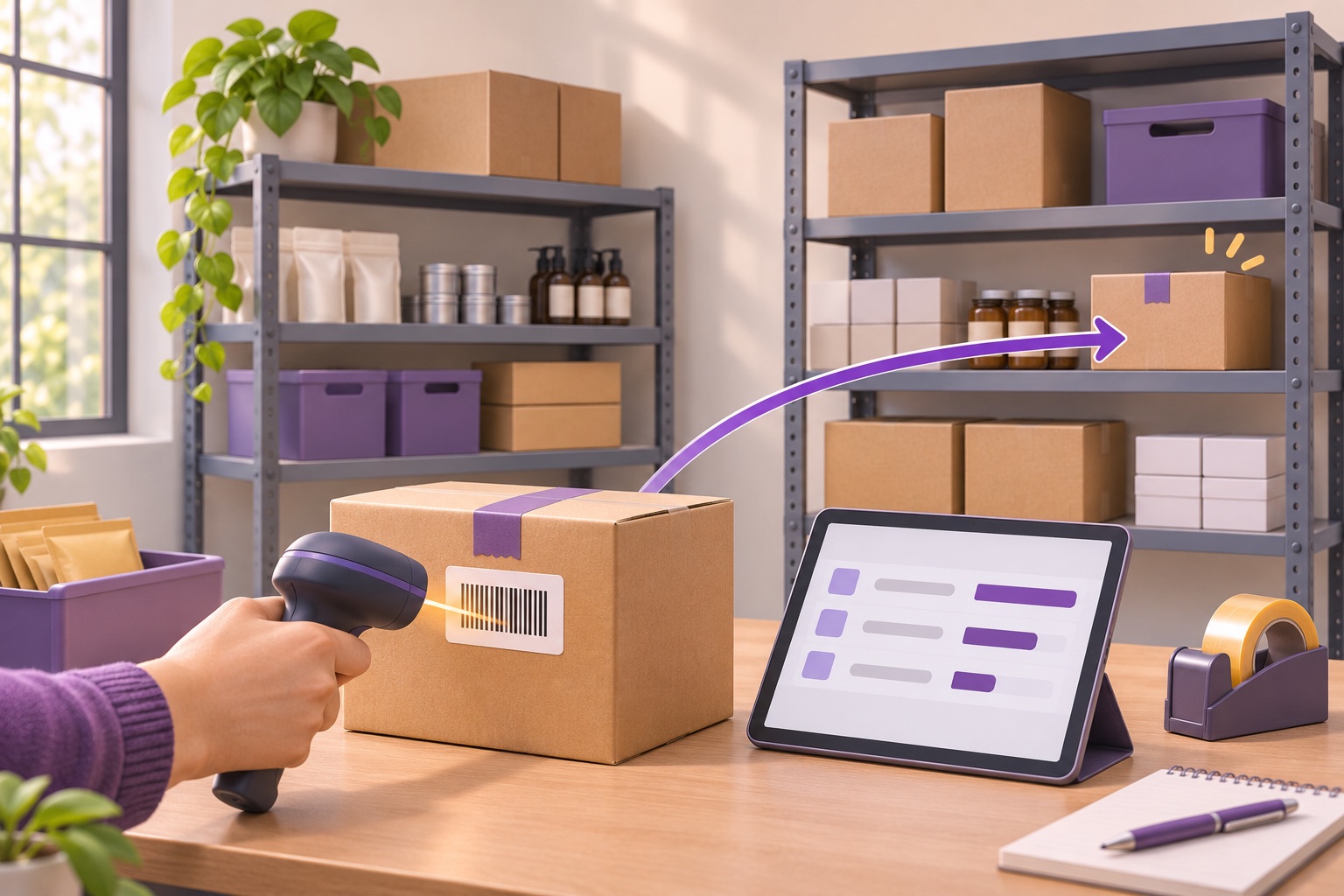
Small businesses can use Odoo Inventory to track stock movements, plan replenishment and connect online sales with warehouse operations. Start with accurate product records, recorded receipts and deliveries, and clear responsibilities. Standard functions cover daily stock control; ecommerce and 3PL connections need configured integrations.
This guide is for small retailers, wholesalers and ecommerce teams that want more control over stock. We will work through a practical starting process, a simple numerical example and the decision to move from spreadsheets to inventory software.
Why stock problems continue even when everyone is busy
A salesperson sees stock in a spreadsheet and promises it to a customer. A warehouse colleague has already picked those units for another order. Meanwhile, purchasing orders more of a slow-moving product because nobody trusts the recorded balance.
This is an illustrative situation, but the decisions are familiar: what can we promise, what should we buy and which record is correct? Buying software helps only when the team also agrees how and when stock movements are recorded.
Good inventory management gives each movement a reason and an owner. The person receiving a delivery checks what arrived. The person dispatching an order records what left. A count difference is investigated before someone adjusts the balance.
How to manage inventory for a small business: five steps
1. Make product records consistent
Give each product and relevant variant a clear internal reference, description and unit of measure. Decide how purchasing units relate to stock units: a supplier's box of ten must not be confused with one individual item.
Record where goods belong, who supplies them and which identifiers staff should use. A barcode helps select the correct item, but duplicate product records still create confusion. Agree who may create or change products.
2. Start with a count you can explain
Count the stock physically present at each location, record the date and account for movements during the count. Separate damaged goods, returns awaiting inspection and items already picked for dispatch.
Compare the count with existing records and investigate differences. Importing an old spreadsheet without checking it carries the same uncertainty into the new system. Keep a record of opening balances and approved corrections.
3. Record receipts, deliveries and returns as they happen
Check incoming goods against the purchase order, including quantity and condition. Record internal transfers and deliveries at the appropriate stage of the operation. Define what happens when only part of an order arrives or leaves.
Returns also need a decision: can the item be sold again, should it be inspected or is it unusable? A returned parcel does not automatically mean the same quantity is ready for the next customer.
Assign responsibility for these actions. If an online store or another system exchanges stock data with Odoo, agree which system controls the balance and how failed updates will be noticed.
4. Set replenishment around demand and delivery time
A reorder point is a planning threshold for ordering more stock. It should reflect expected usage during the supplier lead time and any buffer the business chooses for uncertainty.
Review supplier delivery times, order multiples and minimum order quantities. A safety stock buffer may help with variability, but it also ties up money. For spare parts, consider how critical the supported equipment is as well as how often the part sells.
Start with rules someone can explain and review them when demand or delivery performance changes. Automation will follow the configured inputs; it cannot correct unreliable supplier dates or product data on its own.
5. Count regularly and investigate recurring differences
Use cycle counting to check selected products or locations between full stock counts. Give more attention to items that are valuable, frequently handled or repeatedly wrong.
When a difference appears, look for missed receipts, incorrect units, duplicate products, unrecorded damage or picking errors. Adjusting the quantity closes the immediate discrepancy; correcting the process helps prevent a repeat.
Which capabilities are standard, and what needs integration or development?
The Odoo examples below refer to version 19. Confirm the required applications and edition for your setup.
| Task | Solution | What it needs |
|---|---|---|
| Explain a stock balance | Standard product and movement records | Correctly recorded operations and the right location/date filters |
| Track batches and shelf life | Standard lots and expiration-date features | Tracking enabled and product/lot dates configured |
| Exchange store and warehouse orders | Ecommerce or 3PL connector | Supported APIs, matching product references and tested status rules |
| Analyse turnover and forecast purchases | Custom ERPixel reporting | Agreed data, reporting period and calculation method |
Why does Odoo show 3 units when I expected 40?
Check which quantity, warehouse and date you are viewing, then trace the receipts, deliveries, transfers and adjustments behind the balance. A recorded balance, a free-to-use quantity and a future projected quantity answer different questions.
What I like about Odoo is that stock does not simply appear from nowhere or disappear without a trace. Each recorded stock movement has a source and a destination: from → to. A receipt moves goods from a vendor location into stock; a delivery moves them from stock to a customer. Returns, internal transfers and inventory adjustments also have locations behind them.
This gives me a way to see where a quantity came from and investigate differences through documents. The history depends on people recording the physical operations correctly.
For me, the product record is a convenient starting point. I can check current stock, open the movement history, and inspect expected incoming quantities and their scheduled dates. “Why do we have only 3 units when there should be 40?” is a question users often ask me. The movement history gives us somewhere concrete to start.
As a simple illustrative reconciliation, a receipt of 40 units followed by a delivery of 30 and a scrap movement of 7 leaves 3. That is not a client result; it shows the kind of trail we look for. If a physical count still differs, the next task is to identify a missing or incorrect operation.
How it works in Odoo: a small-business example
The following example is hypothetical. It illustrates stock planning, not an ERPixel client result. The Odoo-specific explanations refer to Odoo 19; confirm the available applications and configuration in your own database.
A small wholesaler sells a replacement filter. On Monday morning it has 40 units. A confirmed supplier delivery of 30 units is due on Tuesday, and a customer order for 50 units is due to leave on Wednesday.
| When | Movement | Projected balance |
|---|---|---|
| Monday morning | Opening stock | 40 units |
| Tuesday | Receive 30 units | 70 units |
| Wednesday | Deliver 50 units | 20 units |
The calculation is 40 + 30 − 50 = 20 units after those movements. It does not mean 70 units are physically available on Monday. If the customer needs all 50 units before the supplier delivery, there is a shortage of 10 units at that point.
In Odoo, configure the product for inventory tracking, record the supplier and purchasing information, and check the purchase and sales operations. The Forecasted report shows projected quantities and the timing of incoming and outgoing movements. Check reservations before promising stock to another customer. See the official Odoo 19 forecast report guide.
Does forecasted stock predict future customer demand?
No. The standard Forecasted report projects stock from recorded incoming and outgoing operations. Demand forecasting estimates future sales that have not yet become orders and needs a separate method. At ERPixel, we build custom reports for this purchasing analysis, as described below.
For regularly stocked products, configure a reordering rule with the appropriate location, route, minimum and maximum quantities. Depending on the trigger and route, replenishment may be proposed for review or generate a procurement document. Review the supplier, dates and quantities before committing to a purchase. The Odoo 19 reordering rules documentation explains the configuration.
Receiving and delivery records must then reflect what actually happened. If the supplier is late or delivers fewer units, update the operation so the next decision uses the revised information. For the detailed distinction between recorded, reserved and forecasted quantities, read how Odoo Inventory works. For more complex supply flows, see Odoo inventory routes and rules.
Can Odoo connect an online store with a 3PL warehouse?
Yes, with an appropriate connector and agreed data-exchange rules. Inventory can be part of a wider solution: the online store sells, your warehouse or a 3PL (third-party logistics provider) prepares the goods, and a partner company delivers the parcel.
A small business can start with a straightforward connected flow:
- The store sells. A connector passes the order and relevant customer information to Odoo, using agreed product references and order-status rules. See our guides to Shopify–Odoo integration and WooCommerce–Odoo integration.
- The warehouse prepares the goods. Odoo coordinates stock availability and the delivery operation. An external warehouse may receive the fulfilment instruction through its own connected system. Our warehousing and logistics page describes the wider operational scope.
- The delivery partner takes over. The agreed integration returns dispatch status and tracking information where supported. Customer notifications can then use those updates rather than depend on someone copying a tracking number.
- The records are reconciled. Stock and fulfilment updates help the team check what was ordered, prepared, dispatched or returned. Agree which system controls each record and how integration failures are reviewed.
These are basic processes that small businesses can use too. Start with one store, one warehouse and a defined delivery handoff. Allow for configuration, testing and support; external services and connectors may have separate fees.
For example, a business using a Mintsoft-connected fulfilment centre can use the Odoo Mintsoft Connector to exchange product, stock, order and fulfilment information. The Mintsoft warehouse integration guide explains the flow.
Where the connected process can save time and money
The savings come from removing repeated work and catching problems earlier. Practical examples include:
- Dispatch on time and notify the customer promptly. When the systems support event-based updates, dispatch and tracking notifications can arrive in real time. Better information can reduce avoidable cancellations, refusals and returns caused by uncertainty or late handling. It does not remove every reason for a return.
- Buy before the shortage interrupts sales. Reviewing forecasted stock and supplier lead times in advance gives purchasing time to act. This can reduce out-of-stock periods and the sales lost during them; supplier delays and unexpected demand still need attention.
- Reduce repetitive administration. Connected records can remove the need for parallel Excel sheets used to copy orders and stock balances between teams. Less manual entry can reduce the staffing needed for routine processing and help the same team handle more work. Documents and movement history make the work easier to check; actual staffing needs depend on volume and exceptions.
- Spend less time reconciling externally stored stock. With a 3PL connection, stock and fulfilment updates can replace repeated manual requests and spreadsheet comparisons. This supports more consistent reconciliation with the partner, provided both sides use matching product references and review differences.
Agree the required update speed before launch. Some connections use real-time events; others run on a schedule. The important point is to make inventory synchronization timely enough for the sales promise and to make failed updates visible.
Where barcode scanning helps
A barcode inventory system is useful when staff repeatedly select products, locations and quantities during receiving, picking or counting. Odoo's Barcode app provides an interface for these operations. Mobile data collection works best when devices, connectivity and permissions suit the actual place of work.
Set up and check product barcodes before depending on scanning. A product barcode identifies the product or variant; tracking a particular batch or individual unit requires lot numbers or serial numbers and the appropriate tracking configuration. Scanning a product's UPC or EAN does not by itself create that traceability. See the official guides to product and location barcodes and lot and serial tracking.
Examples of scanners to evaluate for Odoo
For a fixed receiving or packing desk, a USB scanner that sends keystrokes to the computer is a straightforward option. A cordless scanner gives the operator more freedom around that workstation. The following models provide wired and cordless options for this type of setup. Confirm the exact kit, host interface and configuration before ordering:
- Zebra DS2208: a corded 1D/2D scanner for a fixed workstation. Use the USB kit and configure USB HID keyboard input.
- Zebra DS2278: a cordless 1D/2D scanner with Bluetooth, useful when a cable would restrict movement. Confirm the host connection and keyboard-input configuration.
- Honeywell Voyager XP 1470g: a corded 1D/2D scanner; choose a USB keyboard-compatible kit for a desk-based workflow.
Match the scanner's keyboard layout to the computer and configure an Enter/carriage-return suffix after each scan. Test your actual product, location and lot labels in Odoo Barcode before buying multiple devices. Check 2D and GS1 support where your labels require it. A handheld scanner is an input device; the computer, tablet or phone still runs Odoo. Integrated mobile computers need their own app/browser and scan-output configuration. Start with Odoo's scanner setup guide and its compatible hardware page.
Can a small food business track batches and expiration dates?
Yes. A small food shop or wholesaler can use standard lot and expiration tracking after enabling and configuring the relevant features. A lot identifies a batch, so the team can see which delivery it came from, what remains and which customers received it. Serial numbers identify individual units and are useful when each item needs its own history.
In Odoo 19, enable Lots & Serial Numbers and Expiration Dates in Inventory settings, then configure tracking and dates on the relevant products. For food sold in batches, lot tracking is usually the relevant choice. Use the supplier's actual dates where appropriate rather than assuming every receipt has the same remaining shelf life.
For example, a food business can identify a batch nearing its removal date and plan which stock to dispatch first. With the appropriate FEFO removal strategy, Odoo selects lots according to their removal dates. This supports shelf-life management and batch investigations; staff still need to check the goods and follow the handling rules for their products. See the official guides to expiration dates and FEFO removal.
Connect stock quantities, financial value and product categories
I also find it useful to inspect inventory through both warehouse reports and the Balance Sheet. The warehouse report explains quantities and movements; the Balance Sheet shows the financial value posted to the inventory asset accounts.
These views need a common date and the right valuation configuration to be reconciled. In Odoo 19, warehouse valuation follows stock movements, while accounting valuation is updated through the selected invoicing and/or closing process. The two reports do not necessarily change at the same moment after every operation. Our guide to inventory valuation in Odoo 19 explains the distinction; the official valuation documentation describes the accounting settings.
Product categories let us separate rules for different groups. For example, jewellery and food can have different costing, accounting or removal requirements, while main products and accessories can be reviewed as separate groups. Categories can override relevant default valuation and account settings and carry removal strategies. Configure product-level tracking and expiration settings for the goods concerned as well.
Use meaningful quantities: units, litres and tonnes
I like being able to look beyond the number of pieces when reviewing sales and purchasing. Litres or tonnes can describe the business better than a simple item count.
There are two separate inputs. Weight and volume on the product's Inventory tab describe the physical item and support logistics calculations. The product and transaction units of measure determine how quantities are recorded and converted. Setting a product's weight alone does not turn a sales quantity report into tonnes.
For example, oil sold in litres and purchased in a larger volume unit needs compatible volume units and conversion factors. Goods measured in kilograms can be converted to tonnes within the weight category. Converting pieces into weight or volume requires product-specific factors and a report that uses them. Check the measures and aggregation in the report you use; where a required calculation is missing, it can form part of a custom report. See Odoo 19 units of measure.
When is a spreadsheet enough, and when should you use software?
Choose around the work your team needs to coordinate. Product count alone is a poor reason to buy an ERP or to stay with a spreadsheet.
| Approach | When to consider it | What to check |
|---|---|---|
| Spreadsheet | A clearly owned process with limited simultaneous updates | Who controls changes, reconciles counts and checks availability before a promise? |
| Standalone inventory software | Stock tracking is the main requirement | Does it support your locations, reservations and links to sales or accounting? |
| Integrated ERP such as Odoo | Purchasing, stock, sales and other teams need connected records | What configuration, data preparation, integrations and training will be needed? |
If a spreadsheet is accurate and the process is easy to control, keeping it may be reasonable. Repeated conflicting edits, overselling across channels or manual copying between purchasing and sales are reasons to evaluate a connected system.
For an overview of the application's role, see Odoo Inventory. Check edition, hosting and required applications before comparing costs. Implementation effort also depends on data quality, integrations and how much the team needs to change its working process.
What to prepare before setting up Odoo Inventory
- A checked product list with references, variants, units and barcodes where used.
- Opening stock by location, with an agreed count date.
- Supplier records, expected lead times and purchasing constraints.
- A written flow for receipts, deliveries, transfers, returns and damaged goods.
- Named owners for product data, stock corrections and purchasing decisions.
- A list of connected systems and the information each must exchange.
Use a small, representative selection of products to try the full flow before expanding it. Include a partial delivery, a return and a count difference. Staff should be able to explain both the physical action and its record in Odoo.
When we use a custom report for stock turnover and purchasing
At ERPixel, we also build custom reports for stock turnover and purchasing forecasts. This is additional reporting work, separate from the standard Forecasted stock report described above.
A useful report should make its period, units and calculation rules clear, including how returns, transfers and unusual orders affect the result. It can help the purchasing team review how quickly stock moves and prepare a purchasing plan. The forecast depends on the available data and chosen assumptions; it remains a decision aid that the buyer should review.
How to tell whether the process is improving
Record a baseline before changing the process and use the same definitions afterward. Useful measures include:
- Count accuracy: the share of checked product-location balances that match the physical count, using an agreed tolerance.
- Stockouts: instances where an order cannot be fulfilled when required because stock is missing.
- Urgent purchases: orders placed outside the normal replenishment process.
- Aged stock: items with no movement over a period relevant to your business.
- Counting discipline: scheduled counts completed and recurring discrepancies investigated.
Compare similar periods and investigate the reasons behind changes. Software can make the records easier to share and inspect, but the results depend on how consistently people use the process.
Take the next step
Choose the first workflow to improve and define the data, responsibilities and integrations it needs.
ERPixel provides Odoo implementation and training for Inventory teams. To discuss your current process and the scope of a change, book a meeting with Alexander Koltsov.