
In Odoo 19, preparing an employee contract for payroll means checking the applicable dates, wage, pay schedule, working hours and country-specific payroll configuration. The contract data used for calculation, the employment document and its signatures are connected parts of the process, but each needs its own review.
This guide is for HR and finance teams preparing a new employee or a salary change. It follows the Odoo 19 documentation and uses a hypothetical 5% raise to show what to check before approving payroll. Fields and available actions depend on the installed applications and localization.
Why an approved salary change can still produce the wrong payslip
Imagine HR approving a department-wide raise from the start of next month. The approval is recorded in an email, the contract document is being updated, but payroll still uses the previous wage. Alternatively, someone enters the new wage too early and changes the basis for a period that should use the old terms.
This is an illustrative situation, not a reported ERPixel client case. The problem is a mismatch between the approved terms, their effective date and the data used by payroll. A signed document alone does not show that the calculation is correct.
The aim is a clear handoff: HR records the approved conditions and dates, the required people sign the appropriate document, and payroll checks a draft calculation against those conditions.
Which apps are required for employee contracts in Odoo 19?
Employees holds personnel data, while Payroll and the relevant localization provide payroll calculation. The template-based workflow needs Salary Configurator; contract PDFs and signatures use Documents and Sign. Attendances or Planning is needed only when selected as the work-entry source. Check that these applications are available in your edition or subscription.
| Task | Application or feature | What to verify |
|---|---|---|
| Maintain personnel data | Employees | Employee, company, job and working arrangements |
| Calculate payslips | Payroll and the relevant payroll localization | Applicable contract conditions, salary rules, work entries and pay period |
| Load contract templates | Salary Configurator | The hr_contract_salary module is installed and the template suits the employee |
| Manage and sign contract PDFs | Documents and Sign | Correct document version, signature roles and recipients |
| Use attendance or planning as the work-entry source | Attendances or Planning, respectively | The selected source application is installed and its records are ready |
The Odoo 19 contract documentation describes managing contract information in the Payroll tab of the employee record. Employees can be opened through the Employees app or Payroll → Employees → Employees. It also specifies the dependencies for templates, documents and signatures.
Payroll localization determines which country-specific structures, rules, benefits and deductions are available. Select the setup for the employee's actual employment context and verify it with the payroll team. Choosing a salary structure with a country name is only part of the configuration; it does not establish that every calculation or document is correct. See the official Payroll overview.
Prepare the contract and salary change in four steps
1. Check the employee and the applicable terms
Start with reliable employee master data. Confirm the employee, employing company, job, department, contract dates and working hours. Review the wage type, pay schedule and the work-entry source used for calculation.
For a transfer or promotion, identify what actually changes. A department change, a new working schedule and a salary increase are different inputs. Do not assume that every internal move should be handled by cancelling the existing contract and creating another one.
2. Separate wage, net pay and employer cost
The wage is the gross amount for the configured pay period. Net pay is the amount remaining after the applicable deductions and other calculation rules. Employer cost may include amounts beyond the employee's gross wage.
Odoo 19 links wage and employer-cost fields in the documented configuration. If one changes, review the related values as well. Benefits and payroll deductions depend on localization and employee circumstances; a percentage increase in base wage does not automatically mean the same percentage increase in net pay or total employer cost.
Check the pay schedule explicitly. A monthly wage, a payment every two weeks and two payments per month are different arrangements. Use the field's displayed period rather than assuming all wage inputs are monthly.
3. Record the effective date and preserve the earlier conditions
Record the approved change and the date from which it applies in the employee's dated contract or compensation history. Review the change workflow available in your Odoo 19 database before editing a wage that is also needed for an earlier period.
The approval date, document-signing date and effective date may differ. Keep the previous conditions available for their applicable period and check that the new conditions begin on the intended date. The example below starts at a month boundary to avoid implying a universal rule for part-period calculations.
For a department-wide increase, test a representative employee first and review the selected population, effective date and resulting wage values. Use a bulk action only after confirming its availability and behaviour in your installed modules. This guide does not assume the older Index Contracts action is a universal Odoo 19 workflow.
4. Review the document, signatures and draft calculation
If using templates, open the employee's Payroll tab and use Load a Template as documented for Odoo 19. Review the populated fields and contract dates rather than accepting every default. Templates may differ for permanent, seasonal or other employment arrangements.
Check the appropriate contract PDF or update template and the required signatories. Documents stores the files and Sign handles the signature process. A consistent template helps document preparation; the employment wording still needs approval for the business's situation.
Then review payroll readiness and calculate a draft payslip for the affected period. Compare the inputs and result with the approved change before validation or payment.
How do you apply a 5% salary increase from a specific date?
Calculate the new base wage, record the approved change with its effective date, preserve the earlier terms and check a draft payslip for the affected period. Review the previous period as well. The example below uses a complete monthly period; partial-period calculation depends on the configured rules.
This example is hypothetical. Assume a fixed gross monthly base wage of €3,000, with an approved 5% increase effective 1 December 2026. The employee works the full month on the same schedule; this example does not calculate bonuses, unpaid absences, taxes, deductions or net pay. The currency does not designate a particular payroll localization.
| Period or calculation | Base-wage amount |
|---|---|
| November 2026 | €3,000 |
| Increase: €3,000 × 5% | €150 |
| December 2026 onward | €3,150 |
The arithmetic is €3,000 × 1.05 = €3,150. The payroll task is to make sure the right amount applies to the right period:
- Record the approved increase and its 1 December effective date, keeping the November conditions available.
- Confirm that the pay schedule remains monthly and that the working schedule and work-entry source have not changed.
- Review any linked employer-cost values and the required contract-update document.
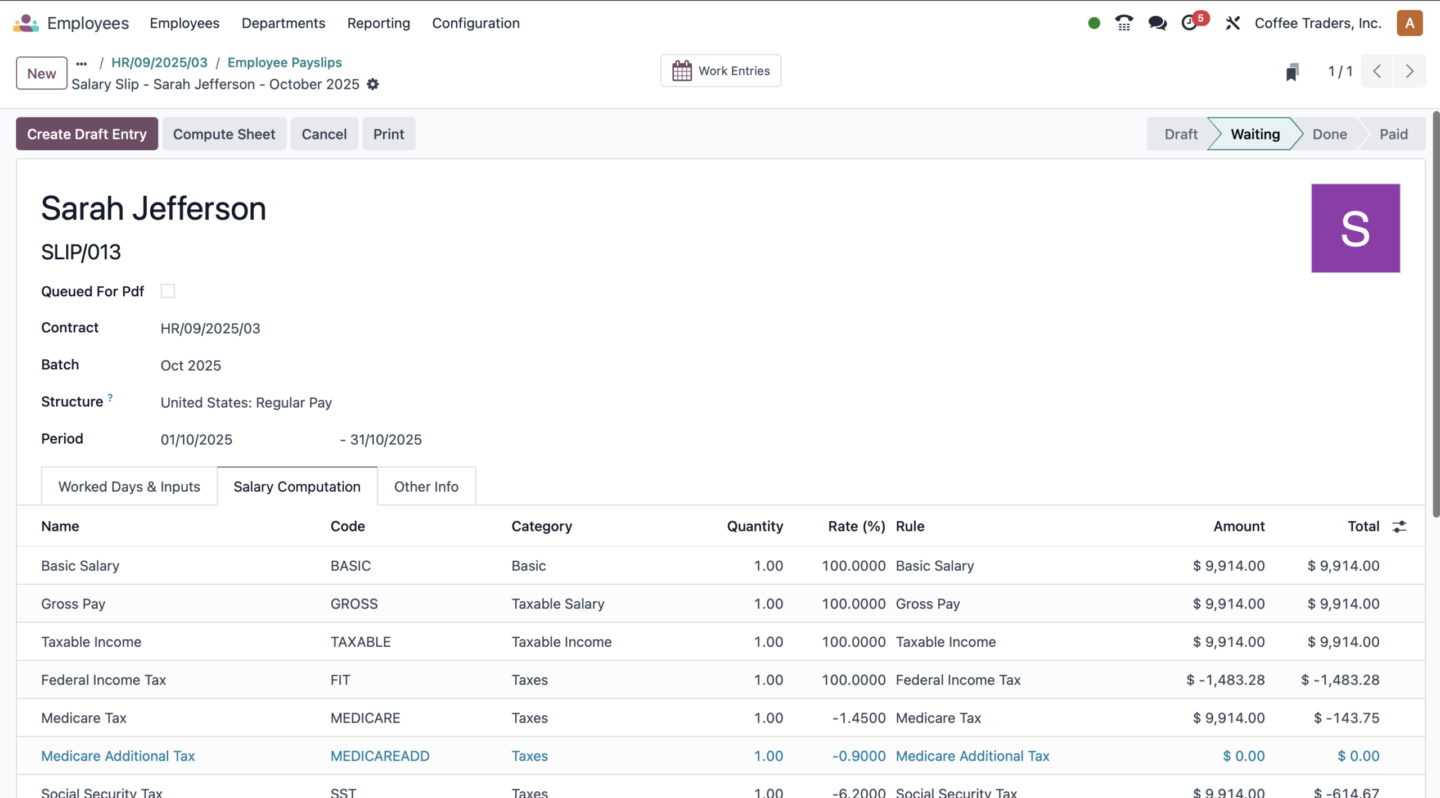
- Calculate a draft December payslip and check the applicable wage and basic salary result. Review deductions and other lines under the actual localization.
- Check the November record or draft comparison to confirm that the future raise has not unintentionally changed the earlier period.
A mid-month raise needs separate testing of the date ranges and the applicable payroll rules. Do not infer a daily proration method from the monthly example. Corrections to an already validated or paid period also need the appropriate correction process rather than an unchecked recalculation.
Which warnings should HR review before payroll?
Odoo's Payroll dashboard displays warnings, including employees without running contracts or missing bank-account information. Open the relevant warning to inspect its records. The employee needs an applicable contract covering the payroll period, along with the other inputs required for calculation.
Review dates and context before changing a contract. A planned future change is not automatically an error. Resolving one warning also does not prove that all wages, work entries or deductions are correct.
- Does the contract information apply to the period being calculated?
- Are the approved wage and pay schedule correct?
- Are the selected work entries and absences complete and consistent?
- Are required employee and payment details available?
- Has someone reviewed the calculated payslip before validation and payment?
The Odoo 19 payslip documentation explains warnings and payslip processing. For work entries, schedules and the wider payroll workflow, continue with our Odoo Payroll guide. This article focuses on preparing the contract and compensation inputs for that handoff.
Does signing a contract PDF update payroll automatically?
Not necessarily. Signing completes the document step; any associated data updates depend on the configured workflow. Check that the wage and effective dates used by Payroll match the signed terms, then review the draft calculation. A signature alone does not establish that payroll is ready.
For a new hire, make these checks part of employee onboarding. For an existing employee, record the approved change and retain the relevant history. Restrict access to salary information and contract documents to the people who need it.
Why does the payslip still use the previous wage?
First check the payslip period, the effective date and the contract or compensation terms that apply to it. Also check whether the draft was calculated before the change. Review the updated inputs and draft calculation before approval; an already validated or paid payslip needs the appropriate correction process.
| Symptom | What to check |
|---|---|
| The payslip uses the previous wage | Pay period, effective date, applicable terms and when the draft was calculated |
| The PDF is signed but the calculation is wrong | Payroll wage/date inputs separately from the signature status, then work entries and salary rules |
| An earlier period changed after the raise | Historical conditions and effective dates; whether an existing condition was edited instead of preserving the earlier period |
| Contract templates are unavailable | Salary Configurator installation, relevant application access and configured templates |
| Base wage is correct but net pay differs from the expectation | Applicable localization, deductions, benefits and the period's work entries; a gross raise is not a net-pay calculation |
What is standard, localization-dependent or custom?
- Standard Odoo 19 features, with the required applications: employee and contract information, wage/pay-schedule fields, work entries, payslips and readiness warnings. Contract templates, document storage and signatures use the additional applications listed above. These still need configuration.
- Localization-dependent: available country-specific structures, salary rules, statutory deductions, benefits and reporting. Net pay, employer-cost treatment and partial-period results depend on the applicable configuration and inputs.
- Additional configuration or development: organisation-specific approval chains, integrations with external HR/payroll systems and checks or reports not supplied by the selected standard setup. Some requirements can be met by configuration; specify any remaining gaps before commissioning custom work.
How to tell whether the process is working
Use your own records to track salary changes applied to the intended period, payslips returned for correction, unresolved readiness warnings and time spent investigating differences. Keep the definitions consistent when comparing periods.
If your team needs help connecting HR data, documents and payroll preparation, discuss the scope through Odoo implementation or book a meeting with Alexander Koltsov. Start with the country, installed applications and one representative contract change.